Blue Odin imports your WooCommerce customer data.
To view all the people who ordered from your store, go to Metrics > Customers.
This is what the CUSTOMERS section looks like:
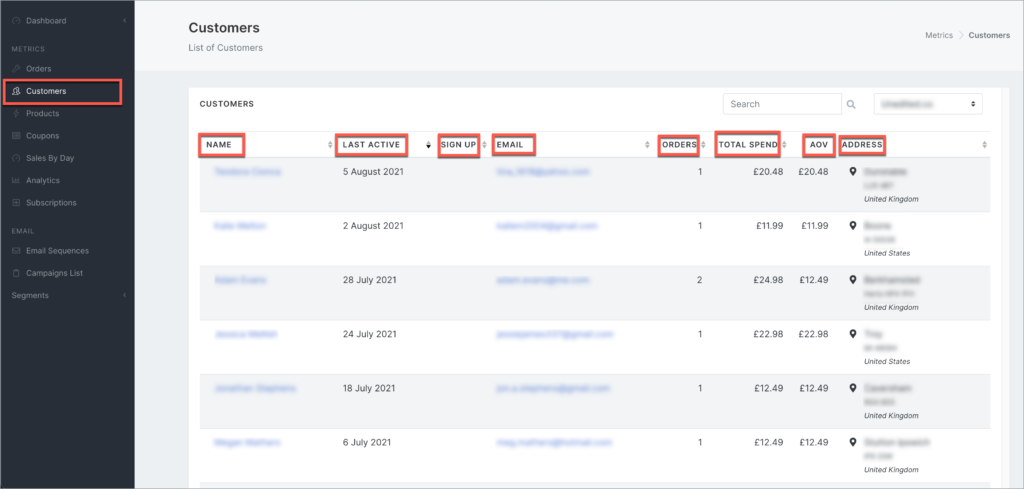
Here’s what the columns in the screenshot above mean:
NAME
The first and last name of the customer, e.g. John Doe. If they have an account at your store, their username will appear below their names, e.g. john.doe. If they purchased as a guest, no username will appear.
Here’s an example:

LAST ACTIVE
The date when the customer last visited your store.
SIGN UP DATE
The date when the customer signed up for their account (this is blank if the customer is just a guest and not registered)
Customer’s email address.
ORDERS
The total number of orders made in your store.
TOTAL SPEND
Total amount spent on all purchases.
AOV
The average order value or average amount spent per order.
ADDRESS
The shipping address used by the customer.
What can you do in the Blue Odin Customers section?
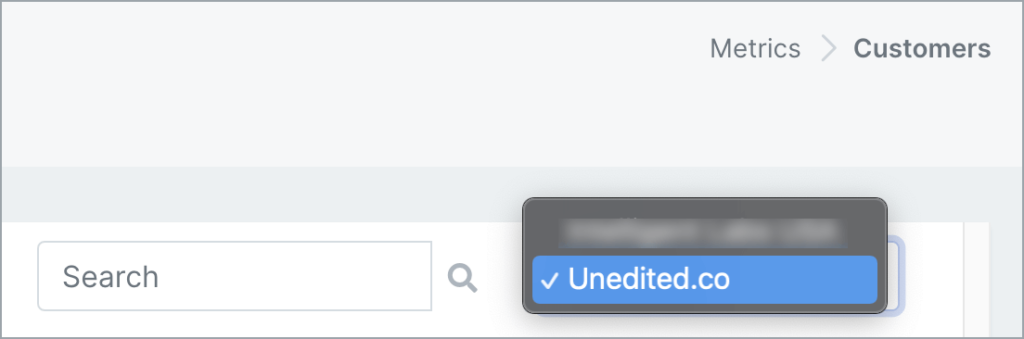
First, make sure you’re looking at the right store.
You can select the store in the store selector dropdown.
Then, you can check out all of your store’s customers!
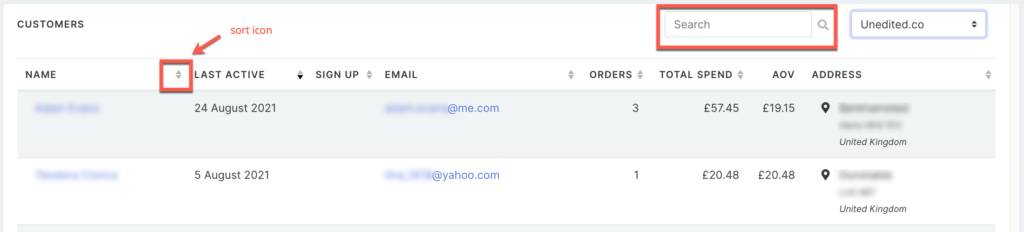
You can SORT customers by:
- Name
- Last active date
- Sign up date
- Email address
- Number of orders
- Total spend
- Address
You can SEARCH customers by:
- Name
- Email address
- Address
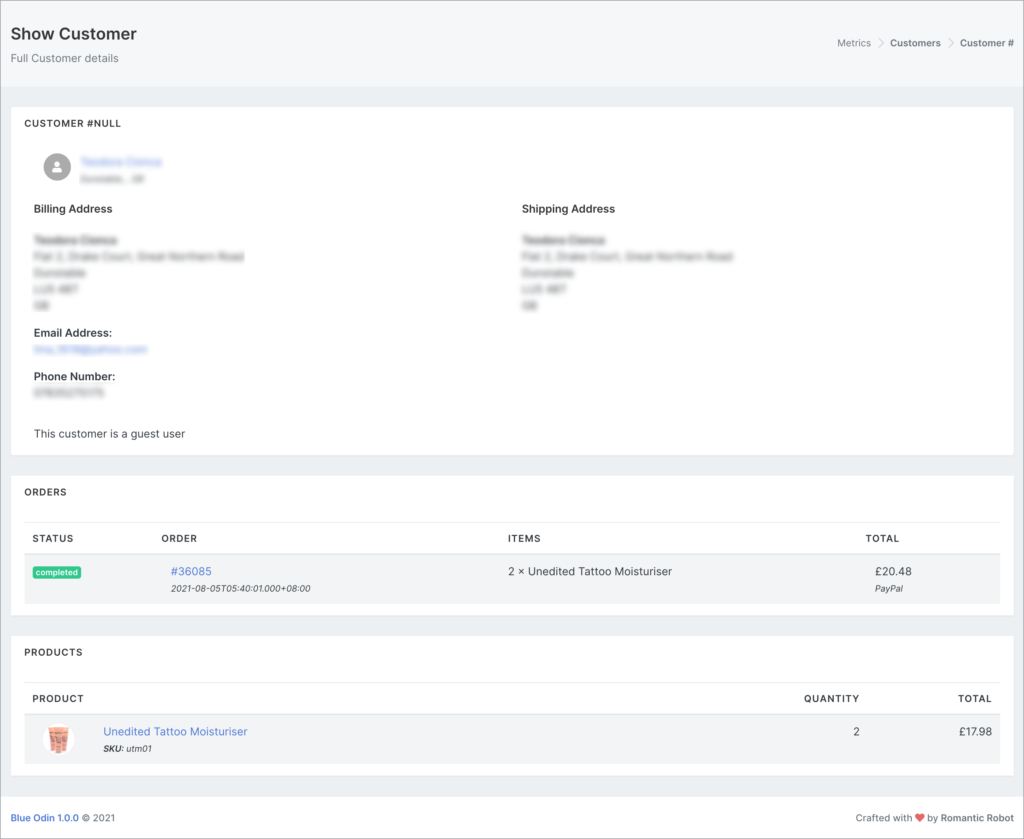
You can click on the Customer Name to view the full customer details.
Here’s an example:
You can even send an email to your customer.
Just click on their Email Address:

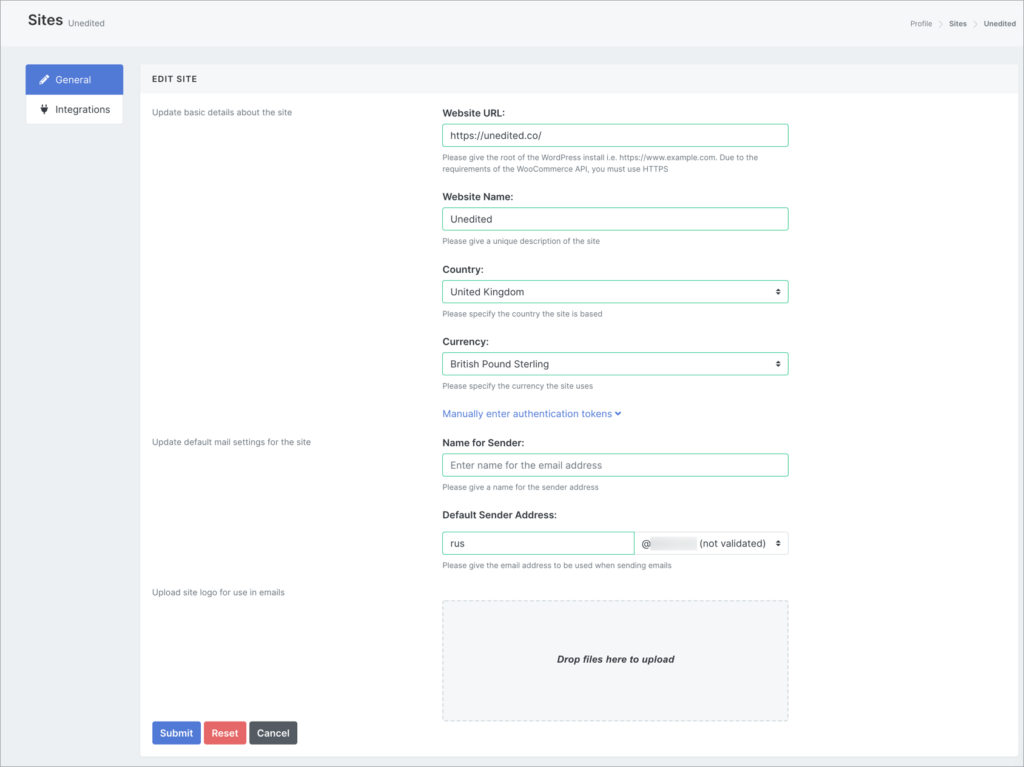
You can check or update your email settings by going to Profile > Sites.
Click the pencil icon to edit the Site settings.

In the General tab, you can update both your website details and default email settings for your website.