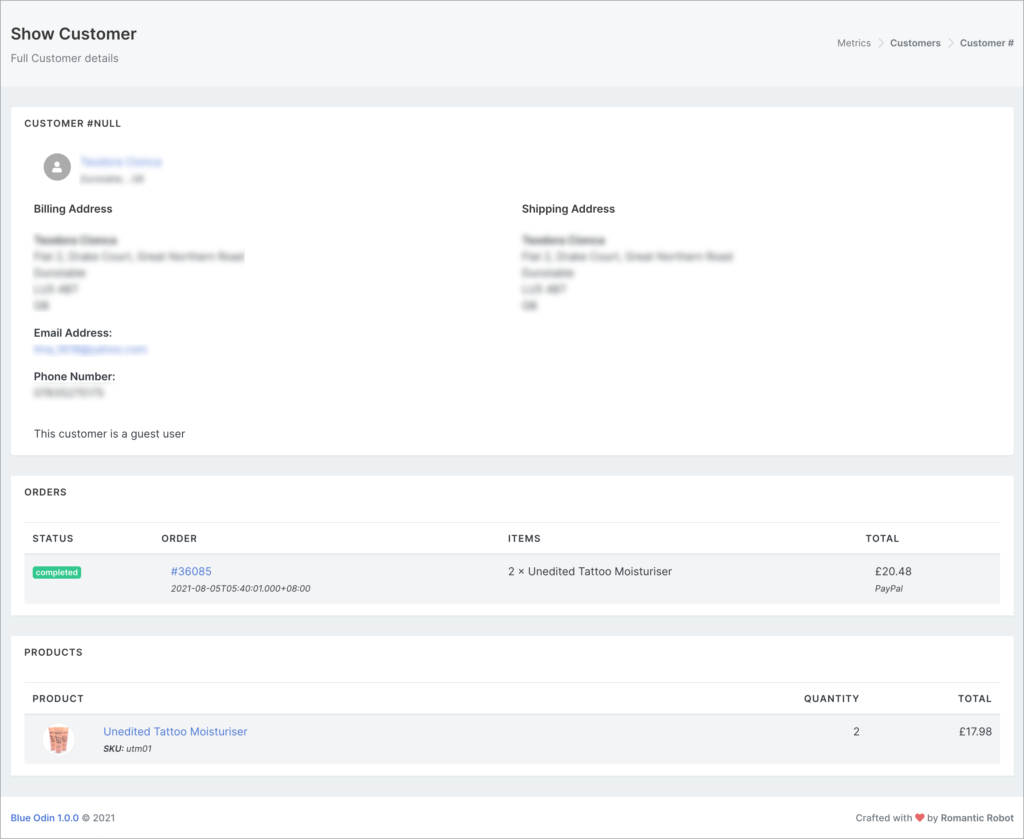
Blue Odin imports your WooCommerce order data.
To view all of your site orders, go to Metrics > Orders.
This is what the ORDERS section looks like:
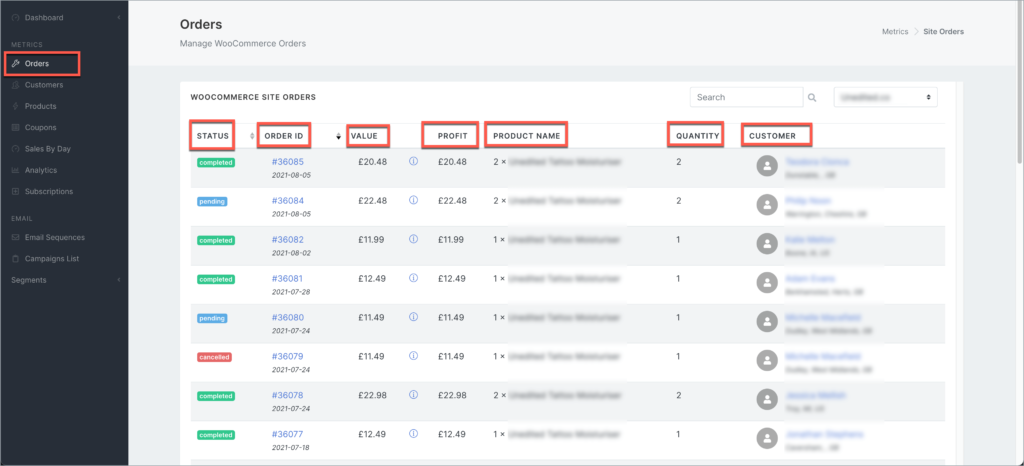
Here’s what the columns in the screenshot above mean:
STATUS
Order status can be Completed, Processing, Pending, On-hold, or Cancelled
ORDER ID
The order number along with the order date.
You can click on the order number to view the full order details.
VALUE
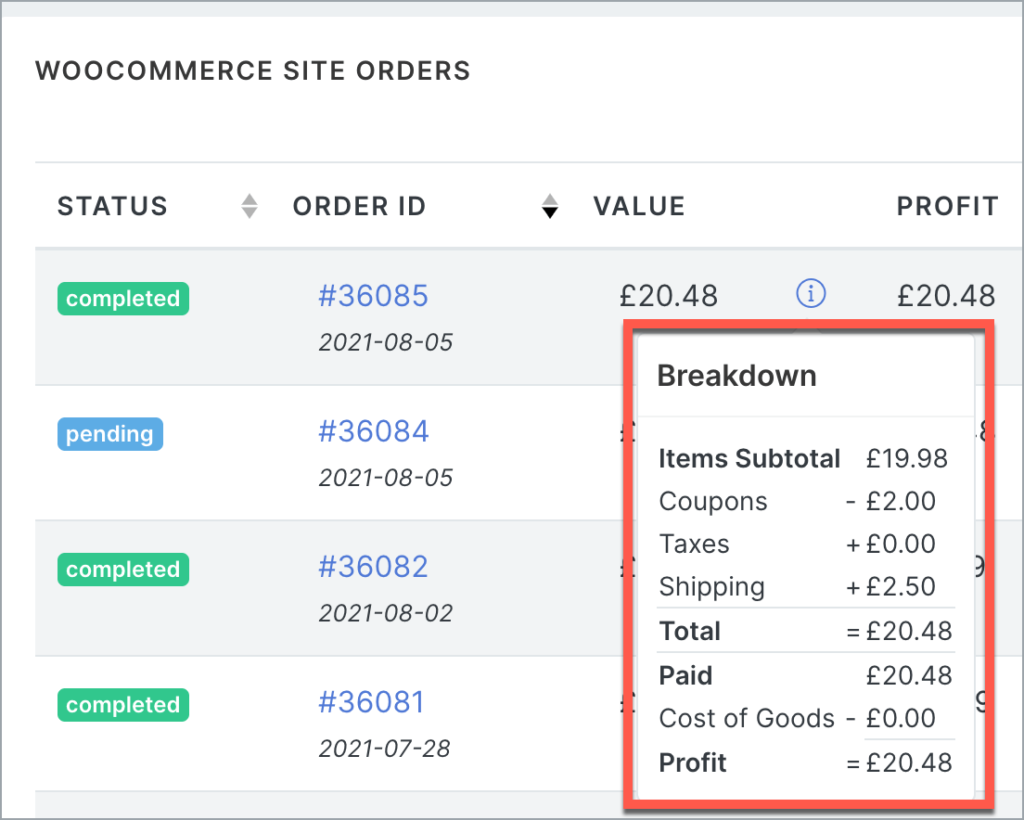
This is the amount the customer paid for.
Hover over the (i) symbol to view the breakdown.
Here’s an example:
PROFIT
The total amount paid minus the cost of goods.
PRODUCT NAME
The name of products the customer purchased.
QUANTITY
The total number of products purchased.
CUSTOMER
The name and location of the customer.
Click on the customer name to view their full customer details.
What can you do in the Blue Odin Orders section?
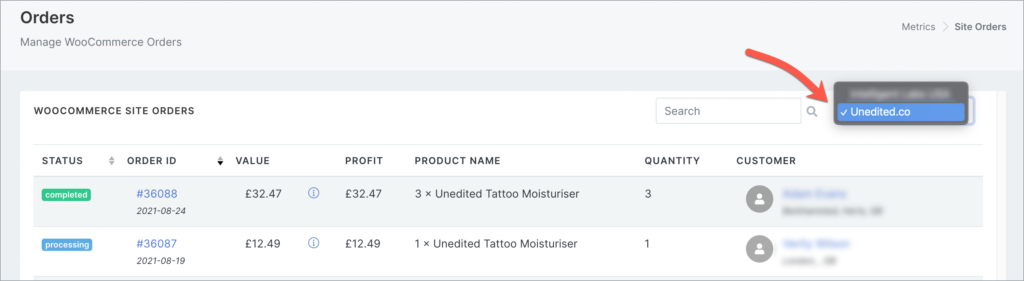
First, make sure you’re looking at the right store.
You can select the store in the store selector dropdown.
Then, you can check out all of your store’s orders!
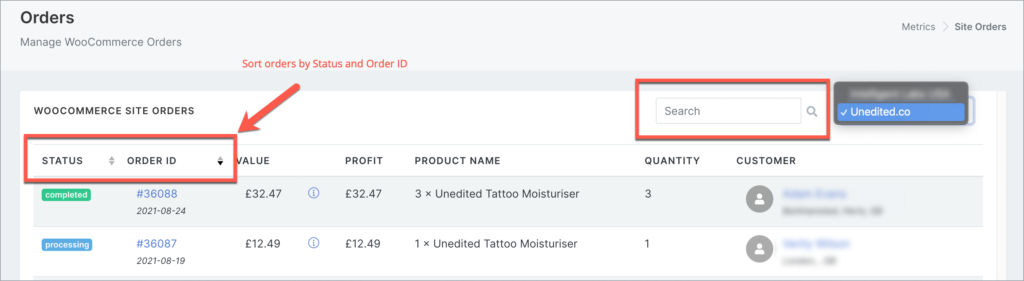
You can SORT orders by:
- Status
- Order ID
You can SEARCH orders by:
- Order ID
- Product Name
- Customer Name
- Customer Location
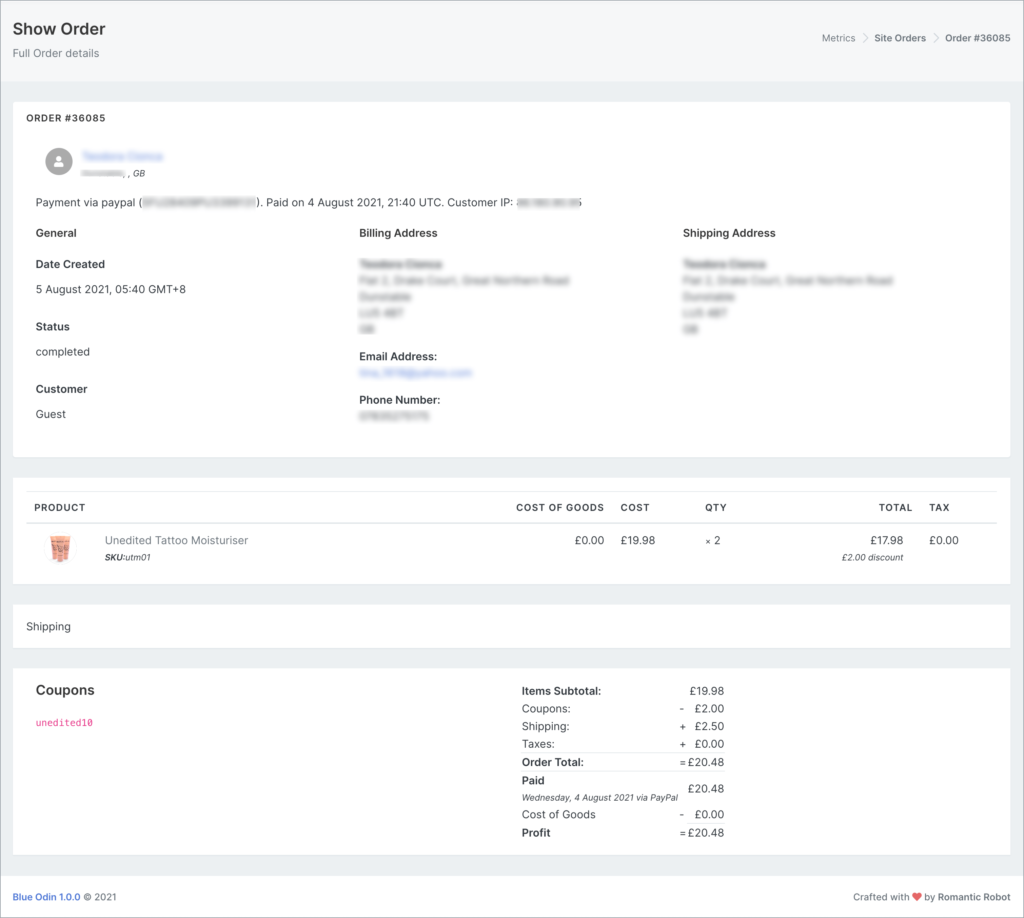
You can click on the Order ID to view the full order details.
Here’s an example:
You can click on the Customer Name to view the full customer details.
Here’s an example: